How to Use Claude Code's Preview Feature for Visual Editing (And Where It Stops)
Most developers hear "Claude Code has a preview feature" and assume it works like a visual editor. It doesn't. That misunderstanding shapes how people configure it, what they expect from it, and why they end up frustrated when it behaves differently from a tool like Figma or a CMS visual editor.
Here's what the preview feature actually does, how to configure it correctly, and where the model breaks down if your team needs more than one person involved in the visual loop. We'll also cover what teams reach for when one agent on one local machine isn't enough. (If you're newer to Claude Code itself, start with what Claude Code is or our beginner's guide to using it.)
TLDR: If you need an enterprise-grade visual editor where non-developers can ship production UI without touching code, Claude Code Preview isn't it — Builder.io is.
What is the Claude Code preview feature?
The Claude Code preview feature is an embedded browser in the Claude Desktop app that lets the AI agent verify its own code changes by taking screenshots, inspecting the DOM, and interacting with the running app. It is not a visual editor. It is the AI's self-verification layer.
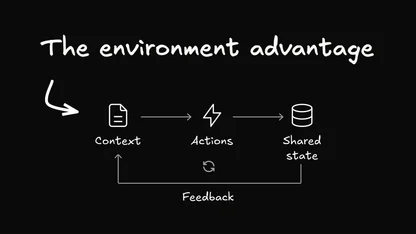
That distinction matters. When you work in a traditional visual editor, you make changes and see them reflected immediately in a design canvas or live preview. You are the one editing visually. In Claude Code's preview, the AI is the one doing the visual work. It opens your running app, takes a screenshot, looks for visual issues, clicks elements, fills forms, and then decides whether to make additional code changes based on what it sees.
You can watch this happen. You can interact with the app yourself in the same embedded browser. But the primary beneficiary of the visual feedback loop is the AI—not you or your team.
Understanding this from the start will save you from having to configure the feature, from expecting Webflow, and from ending up with something quite different.
How does Claude Code verify UI changes automatically?
Direct answer: When autoVerify is enabled (it is on by default), Claude Code starts your dev server after editing project files, then uses the embedded browser to take screenshots and inspect the running app. If it finds visual issues, it makes additional code changes and verifies again before completing its response.
The workflow looks like this:
- You ask Claude to make a UI change — update a color, fix a layout, add a component
- Claude edits the relevant files
- The dev server starts automatically (or was already running)
- Claude opens the embedded browser, takes a screenshot, and inspects the DOM
- If something looks wrong — misaligned element, missing style, console error — Claude makes another pass
- Once it is satisfied, it completes the response

This is a closed feedback loop between the code and the visual output, and it does genuinely help. Catching a broken layout before you ever open a browser tab is faster than discovering it after the fact. The preview brings the verification step inside the AI's own task execution. For more ways to get the most out of this workflow, see our Claude Code tips and best practices.
From the preview panel, Claude can:
- Take screenshots at any point in the workflow
- Inspect the DOM to identify which elements changed
- Click elements and fill forms to test interactions
- Start and stop the dev server from the Preview dropdown in the session toolbar
- Persist cookies and local storage across server restarts by selecting "Persist sessions" — so you do not have to re-login during development
How do I configure .claude/launch.json?
Direct answer: Claude Code creates .claude/launch.json at the root of the folder you opened when starting a session. This file tells the preview how to start your dev server. You can edit it manually or click "Edit configuration" in the Preview dropdown to open it in your code editor.
Claude auto-detects your dev server setup in most cases. But if your project uses a custom command, a non-standard port, or a monorepo layout, you will need to configure this file yourself.
Here is the full schema:
Field reference:
| Field | Type | Description |
string | Unique identifier for this server configuration | |
string | Command to run — , , , etc. | |
string[] | Arguments passed to , e.g. | |
number | Port the server listens on. Defaults to 3000 | |
string | Working directory relative to your project root. Use to reference the root | |
object | Additional environment variables. Do not put secrets here — this file is committed to your repo | |
boolean | Port conflict handling (see below) | |
string | A Node.js script to run directly, instead of going through a package manager | |
string[] | Arguments passed to (only used when is set) |
When to use runtimeExecutable vs program
Use runtimeExecutable with runtimeArgs when starting a dev server through a package manager:
Use program when you have a standalone Node.js script you want to run directly with node:

Monorepo example: frontend + API on separate ports
Important: Secrets from your shell profile (
.zshrc,.bashrc) are inherited automatically. Do not put API keys or passwords in theenvfield — this file typically gets committed to your repository.
If you want Claude to remember project conventions beyond the dev server setup — preferred libraries, style rules, things to avoid — pair launch.json with a well-crafted AGENTS.md file. That's where you teach the agent how your codebase works, not just how to start it.
How do I control auto-verify behavior?
Direct answer: Auto-verify is on by default. To disable it for a specific project, add "autoVerify": false to your configuration object in .claude/launch.json. You can also toggle it from the Preview dropdown without touching the file.
When auto-verify is disabled, the preview panel and embedded browser are still fully available. You can still ask Claude to check the current visual state at any time — verification just will not run automatically after every edit. This is useful for slow-rebuilding apps or when you want to batch several changes before triggering a visual check.
What are the limitations of Claude Code preview?
Direct answer: Claude Code preview is local, solo-first, and AI-centric. It works well for a single developer iterating with Claude on a local dev server. It has real constraints for monorepos, secrets management, and anything that requires human-driven visual editing.
Subfolder detection. Preview uses the root folder you selected when starting your session as its working directory. If you opened a monorepo root, Claude will not automatically detect dev servers running in subfolders. Solution: start your session directly inside the subfolder, or manually add that subfolder's server configuration to launch.json.
Port conflicts. The autoPort field controls what happens when your preferred port is already taken:
autoPort: true— Claude finds a free port and passes it to the server via thePORTenvironment variableautoPort: false— Claude fails with an error. Use this when your server must use an exact port (OAuth callbacks, CORS allowlists)- Not set — Claude asks you the first time and saves your answer
Secrets management. The launch.json file gets committed to your repo by default. Do not put API keys, database credentials, or other secrets in the env field. Use your shell profile or a .gitignore'd .env file for sensitive values.
Solo-AI-centric model. The most consequential limitation is not a configuration issue — it is a workflow design choice. The visual feedback loop in Claude Code preview exists for the AI. Claude takes the screenshots. Claude reads the DOM. Claude decides what needs fixing. A designer reviewing a PR or a PM checking a feature in staging cannot join this loop natively. They see the deployed output, but the real-time visual iteration happens between Claude and its embedded browser — one agent, one local session, no shared access.
This also shapes how Claude Code compares to other AI coding tools. If you're weighing it against Cursor, the core tradeoff is agent autonomy versus IDE interactivity — see Claude Code vs Cursor for a detailed breakdown. If you're comparing against a delegation-first agent like Devin, the differences are more fundamental — Devin vs Claude Code covers where each fits.
Does Claude Code have a visual editor?
Direct answer: No — not in the traditional sense. Claude Code has a preview of your running app that the AI uses for self-verification. This is fundamentally different from a visual editor, where a human clicks on elements and those clicks generate or modify code.
When you click an element in Claude Code's embedded browser, you are giving the AI additional context for your next prompt — pointing at what you want changed so Claude understands which element you mean. The AI then writes code to make that change and verifies the visual result. You never edited the element directly.
A community-built extension called the Playground Skill (popularized by developer Adam Sandler) takes an interesting approach to bridging this gap. Instead of editing the live app, Playground generates an interactive HTML tool — with sliders, color pickers, and input controls — that lets you tune visual parameters before Claude writes the final implementation. You click around until it looks right, then it generates the implementation prompt for you.
It is a clever workaround, and it gets more people comfortable with Claude Code. But it operates on isolated parameter-tuning for code snippets, not on your live running application. And it is not native to Claude Code — you install it separately.
For teams where designers and PMs need to propose and validate visual changes without managing a local terminal, this remains an open gap in the Claude Code ecosystem. If you're a designer specifically, Claude Code for Designers covers safe workflows and where to turn when Claude Code alone isn't enough.
Builder.io: visual editing as a team-native workflow
Here is what the Claude Code preview gets fundamentally right: visual feedback loops accelerate development. Seeing a rendered output — not just reading code — catches problems faster and compresses the iteration cycle. That insight is correct, and the preview feature acts on it.
The constraint is scope. Claude Code gives that visual loop to the AI working on your local machine. Builder.io gives it to your entire team, across every branch, without anyone needing a local dev environment.
How it works in practice: An engineer connects the repository to Builder once — dev server commands, environment variables, branch logic. After that, any team member can open a branch, make visual changes directly on the live UI, and generate a clean pull request. No terminal. No local clone. No environment drift between what the designer sees in Figma and what lands in the codebase.
Where Claude Code runs one agent in one session on one local machine, Builder.io can run 20+ parallel agents simultaneously — each in its own cloud container, each with browser preview access. The same verification loop Claude Code uses privately becomes a shared, persistent workflow. For a broader look at how AI roles are evolving in frontend teams, see The AI software engineer in 2026.
| Claude Code Preview | Builder.io | |
Who sees the visual loop | The AI agent only | Every team member |
Infrastructure | Your local machine | Cloud (no local setup) |
Designer access | Text or screenshot descriptions | Click-to-edit on the live branch |
PM validation | Manual staging deployment | Real-time branch preview |
Parallel agents | One session | 20+ simultaneous |
Session persistence | Local, tied to your machine | Cloud-based, shareable |
If you are a solo developer iterating fast with Claude Code, the preview is the right tool for that workflow. If your team — designers, PMs, developers — all need to participate in the visual iteration cycle, Builder.io is built for that collaboration.
The Takeaway
Claude Code's preview feature is a meaningful advance in AI-assisted frontend development. The auto-verify workflow — edit, screenshot, inspect, fix — shortens the cycle between writing code and confirming it looks right.
For solo developers, the setup steps that matter:
- Let Claude auto-detect your dev server on first run, then edit
.claude/launch.jsonto match your actual setup - Use
runtimeExecutableandruntimeArgsfor package-manager servers; useprogramfor standalone Node scripts - Set
autoPort: falseif your server requires an exact port for OAuth or CORS;truefor everything else - Keep secrets out of
launch.json— use your shell profile or a gitignored.envfile - Open subfolders directly in their own session if Claude does not auto-detect their dev servers
For teams building features that multiple stakeholders need to see, review, and validate, the Claude Code preview covers one side of the collaboration gap. Builder.io covers the rest.
For a full comparison of the AI coding tool landscape, the best AI coding tools in 2026 breaks down where each tool category fits in a modern frontend workflow.
Frequently Asked Questions
Q: What is the difference between autoVerify and the embedded browser?
A: The embedded browser is always available in the preview panel. autoVerify controls whether Claude automatically opens it and takes screenshots after each code edit. With auto-verify off, the browser is still there — you trigger verification manually by asking Claude to check the current visual state.
Q: Can I use Claude Code preview with a remote server?
A: Claude Code Desktop supports Remote environments (Anthropic-hosted cloud sessions) and SSH connections to machines you manage. The preview feature connects to a locally running dev server by default. Remote session behavior depends on your specific configuration.
Q: Does .claude/launch.json get committed to the repository?
A: Yes, by default. The file lives at the root of your project folder and is not gitignored automatically. That is intentional — sharing dev server configuration with your team means everyone gets the same setup without manual onboarding steps. The one thing you must not put in it is secrets. Any value in the env field will be visible in your repository history. Use your shell profile (.zshrc, .bashrc) or a gitignored .env file for API keys, database credentials, and other sensitive values. Those are inherited automatically by the dev server process without being exposed in the committed file.