Figma to iOS: Convert designs to mobile apps in seconds
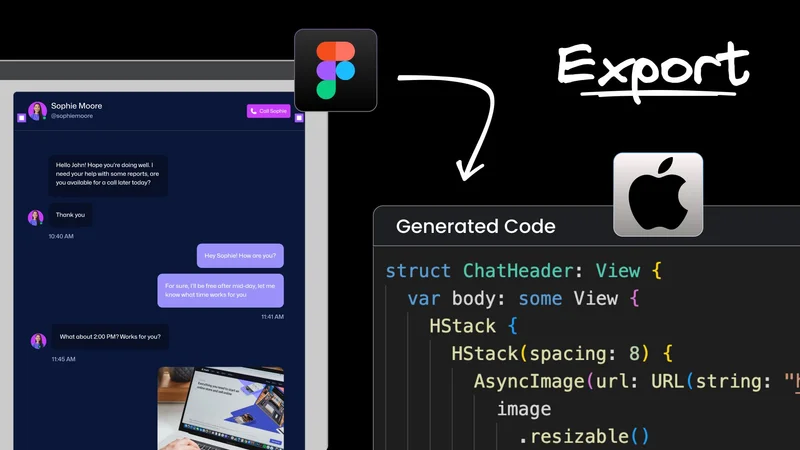
iOS developers have their own special set of design headaches.
Ask three developers to convert a Figma design into clean iOS code and one might dive into SwiftUI's declarative world, another might start bridging JavaScript with React Native, while the third might get to painting pixels with Flutter. But all three must spend hours tweaking Padding values, debating nested VStacks vs. HStacks, and wrestling with state management.
But what if we could automate this tricky translation step? Builder.io's Visual Copilot can transform Figma designs directly into production-ready iOS code that uses SwiftUI, React Native, or Flutter. Get proper component structure and responsive layouts that adapt to different screen sizes—all tailored to the specific conventions and best practices of your chosen framework.
In this blog post, we'll explore how to use Visual Copilot to convert Figma designs into clean iOS apps in seconds.
Visual Copilot: AI-powered plugin to convert Figma to iOS
Visual Copilot is an AI-powered Figma plugin that transforms your designs into clean and maintainable iOS code. Fast and accurate, it helps you skip the tedious UI implementation phase so you can focus on the bigger picture: crafting exceptional products that delight iOS users.
One-click conversion
Visual Copilot exports your Figma design into working UIs for iOS regardless of your preferred framework. You can use SwiftUI, React Native, Flutter, or Capacitor. You can even use Jetpack Compose’s Multiplatform if you prefer an Android- and Kotlin-first workflow.
Regardless of your preference, Visual Copilot analyzes your Figma design and does all the heavy lifting. Ensuring fidelity between your iOS components and your original design has never been easier.
Automatically responsive iOS code
Your iOS app needs to look good on phones, tablets, wearables, and everything in between. Visual Copilot automatically handles different screen sizes and traits, ensuring your layouts adapt perfectly across devices. No more wrestling with Auto Layout constraints, manually calculating frame sizes, or figuring out the right GeometryReader incantation for complex responsive views—Visual Copilot takes care of the tricky parts for you.
Extensive framework and library support
Visual Copilot speaks multiple languages. It's a natural fit for native SwiftUI development, but it's equally fluent in React Native and Flutter for cross-platform iOS apps. Beyond the Apple ecosystem, it also supports web frameworks like React, Vue, and Angular, along with popular styling options like Tailwind CSS.
So whether you're crafting a pixel-perfect native experience with SwiftUI, building a shared codebase with React Native or Flutter, or creating a companion web app with React, you can use Visual Copilot to translate your Figma designs consistently across all platforms.
Customizable code
Once Visual Copilot works its magic, you get clean code tailored to your chosen framework – whether that's SwiftUI views, React Native components, or Flutter widgets. Need to manage state using SwiftUI's @State, React Native's Hooks, or Flutter's setState? Planning to connect to your backend APIs or add complex animations? No problem. The generated code is a solid foundation, ready for you to refine and build upon.
Visual Copilot gives you such fast feedback loops that you can see your Figma changes reflected in Xcode Previews, the iOS Simulator, or your device almost instantly. It's perfect for rapid prototyping and quickly iterating on UI ideas.
Convert Figma designs to iOS directly using the Visual Copilot CLI
The Visual Copilot plugin now features a powerful CLI workflow that’s perfect for iOS developers. You can use it to export Figma designs directly into your project, whether you're using SwiftUI, React Native, or Flutter. A single command handles downloading your design, translating it into the right framework's code, and inserting it into your codebase automatically.
For developers who live in the terminal, especially those using AI-assisted editors like Cursor or Windsurf, this workflow makes design handoffs nearly invisible. Integrating Figma designs into your iOS project becomes a seamless, automated part of your development routine. You can stay focused on building great app features, letting the CLI handle the initial UI scaffolding. This significantly speeds up the iteration cycle from design to functional iOS UI.
How Visual Copilot uses AI to output clean code

Visual Copilot follows a three-stage pipeline to convert designs into usable code. First, our proprietary AI examines your Figma file, grasping its layout (even without auto-layout). Then, the specialized Mitosis compiler translates this structure into code for your specific framework. Lastly, a fine-tuned language model refines the output to align with your team's established coding style and patterns.
The power of design, code, and business context

Modern iOS UI development requires understanding multiple layers of your application's architecture. Unlike other tools, Visual Copilot understands your entire product:
- Design system integration: iOS apps rely on platform conventions (HIG) and design systems—from SwiftUI views and UIKit components to custom themes, typography, and design tokens that define your brand's visual identity across Apple devices.
- Code architecture: Well-structured iOS code follows established patterns, whether it's MVVM with SwiftUI, component composition in React Native, widget structure in Flutter, or effectively managing state using framework-specific tools.
- Business logic integration: Your UI needs to seamlessly connect with your app's core—working with ViewModels and state management libraries (like Redux or Provider), handling data flows, and integrating with your APIs and business rules.
This layered understanding means successful iOS UIs aren't just about individual screens—they're about creating cohesive experiences that follow platform best practices while integrating smoothly with your application's logic.
How to convert Figma designs to iOS apps: a step by step guide
Getting started with Visual Copilot is straightforward:
- Open the Visual Copilot plugin in Figma
- Select the design elements you want to convert
- Click "Export Design"
- Copy the generated command to your terminal
- Follow the prompts to customize your iOS code, and watch as it's automatically added to your project
Figma to React Native: Create a chat interface in seconds
In this video, we export a Figma design for a feature-rich chat UI. Visual Copilot translates the design in seconds into a fully responsive iOS experience. There's no need to write React Native code by hand—the plugin delivers a seamless user experience right out of the box.
Create a chat interface in seconds: Figma to Flutter
Conclusion
Visual Copilot streamlines the conversion process from Figma designs into production-ready iOS code for SwiftUI, React Native, or Flutter. It bridges the gap between your design team's Figma files and your codebase (in Xcode or VS Code), transforming pixel-perfect mockups into responsive views, components, or widgets while adhering to the best practices of your chosen framework.
This modern approach to design implementation aligns perfectly with today's iOS development paradigms, enabling designers to focus on crafting beautiful experiences while developers can build native iOS applications more efficiently than ever.
Learn more about converting Figma to mobile apps
Check out our docs to learn more about Visual Copilot's capabilities for mobile app development and how to use it in your development workflow.
Frequently Asked Questions: Figma to iOS — Convert Designs to Mobile Apps
What iOS frameworks does Visual Copilot support for Figma-to-code conversion?
Visual Copilot supports all of the major iOS and cross-platform mobile frameworks: SwiftUI for native Apple development, React Native and Flutter for cross-platform builds, and Capacitor for web-based hybrid apps. It also supports Jetpack Compose Multiplatform if your team prefers an Android- and Kotlin-first workflow that still targets iOS. Whichever you pick, the output is tailored to that framework's conventions — SwiftUI views, React Native components, or Flutter widgets — not generic markup you have to rewrite.
How does Visual Copilot handle the differences between these mobile frameworks?
The pipeline runs in three stages. First, a proprietary AI model examines your Figma file and understands its layout structure, even without Auto Layout applied. Then the open-source Mitosis compiler translates that structure into the target framework's code. Finally, a fine-tuned language model refines the output to align with your team's coding style, patterns, and state management conventions — whether that's SwiftUI's @State, React Native hooks, or Flutter's setState. Each framework gets output that actually looks like it was written by a developer who knows that framework.
Does Visual Copilot handle responsive layouts for different iOS screen sizes automatically?
Yes. iOS apps need to render correctly across iPhone, iPad, Apple Watch, and CarPlay. Visual Copilot automatically handles different screen sizes and device traits, so you're not manually wrestling with Auto Layout constraints, calculating frame sizes, or figuring out the right GeometryReader approach for complex responsive views. That responsiveness is built into the generated code from the start.
What is the Visual Copilot CLI and how does it fit into an iOS workflow?
The CLI is the most integration-friendly path for developers. You copy a single npx command from the Figma plugin, paste it into your terminal, and it downloads your design, translates it into your chosen framework's code, and inserts it into the correct location in your project automatically. For iOS developers working in AI-assisted editors like Cursor or Windsurf, this makes design handoffs nearly invisible — scaffolding the initial UI is automated, and you can stay focused on building actual app features rather than translating pixel values.
What does Apple's new iOS 26 "Liquid Glass" design mean for Figma-to-iOS workflows?
This is the biggest contextual update since the article was written. At WWDC 2025, Apple previewed a sweeping new design language — called Liquid Glass — that ships with iOS 26, iPadOS 26, macOS Tahoe 26, watchOS 26, and tvOS 26. It introduces a new translucent material throughout the system UI, redesigned tab bars that shrink on scroll, updated sidebars, new SwiftUI APIs for adopting the glass aesthetic, and a new Icon Composer tool for building layered icons. SwiftUI 26 also ships a native WebView, rich text editing support in TextEditor, 3D layout APIs for visionOS, and meaningful performance improvements to list and table rendering. For teams using Figma-to-iOS tools, this means your design files need to be updated to reflect the new iOS 26 design language before converting — the generated code will only be as current as the designs you feed in.
What SwiftUI-specific improvements matter most for design-to-code workflows in 2025?
Several. The performance improvements in SwiftUI 26 — cited as significant gains in list loading and update speed — mean that generated code for data-heavy UIs is far less likely to hit the performance walls that plagued earlier SwiftUI versions. The new native WebView eliminates a common reason to drop back to UIKit. The backgroundExtensionEffect modifier enables more immersive visual treatments. And the new Observable macro improvements make state management cleaner in generated code. The net effect is that SwiftUI is now a genuinely production-ready default for most app UIs, which strengthens the case for using a Figma-to-SwiftUI workflow rather than a cross-platform alternative.
Should I use SwiftUI, React Native, or Flutter for my iOS project?
It depends on your team's makeup and ambitions. SwiftUI is the right call for Apple-platform-native apps where you want the closest fidelity to Apple's HIG, the latest platform features (like Liquid Glass), and the tightest Xcode toolchain integration. React Native is the right call if your team already works in JavaScript/TypeScript and you're building a shared iOS/Android codebase. Flutter is the right call if you want a unified cross-platform UI with Dart, or if consistent pixel-level control across platforms matters more than native platform conventions. Visual Copilot will produce idiomatic code for any of the three — so the decision is really about your team's existing skills and your app's distribution strategy.
Does Visual Copilot understand iOS-specific design concepts like Apple's Human Interface Guidelines?
Yes — to a meaningful degree. The article notes that Visual Copilot understands multiple layers of your application's architecture: platform conventions including the HIG and SwiftUI component patterns, code architecture patterns like MVVM with SwiftUI or widget structure in Flutter, and business logic integration including state management libraries and data flows. The generated code respects framework-specific patterns rather than producing generic UI that happens to compile on iOS.
Can I use Visual Copilot alongside Figma's own iOS design tooling?
Yes, and they serve different purposes. Figma's Dev Mode provides design inspection and annotation for developers. Visual Copilot goes further by generating actual runnable code from those designs. The two are complementary: Dev Mode helps developers understand what a design specifies, Visual Copilot automates the translation of that specification into a working component. You'd typically use Dev Mode during design review and Visual Copilot when it's time to start building.
What Figma design practices produce the best iOS code output?
The same best practices that apply to web code generation apply here, with some mobile-specific additions. Use Auto Layout — it's the single biggest factor in output quality, and it maps most directly to SwiftUI's VStack/HStack/ZStack hierarchy and Flutter's Column/Row structure. Name your layers clearly and semantically, since the AI uses layer names to infer component purpose and state. Define images and icons explicitly using Figma's export feature rather than leaving them as embedded bitmaps. Keep designs sized to real device dimensions (375×812 for standard iPhone, 390×844 for iPhone 14+, and so on) rather than arbitrary canvas sizes, so the responsive output matches real-world constraints from the start.
What happens after Visual Copilot generates the iOS code — is it truly production-ready?
The generated code is a solid, well-structured foundation — not throwaway scaffolding. The article is honest about this: it's ready for you to connect to backend APIs, add complex animations, wire up state management, and build on top of. For most teams, the generated code handles the layout and structural work that would otherwise consume hours of a developer's time, letting engineers focus on the logic and interactions that actually differentiate the product. Think of it as having the boring parts already done when you open Xcode.