Design System Intelligence with Builder UI
Builder's Design System Intelligence (DSI) is Builder’s AI-powered approach to automatically discover, analyze, and map design system components, icons, and tokens.
Design System Intelligence can be implemented with the command line or Builder's UI. In this doc, learn to implement a new design system through the Builder web application.
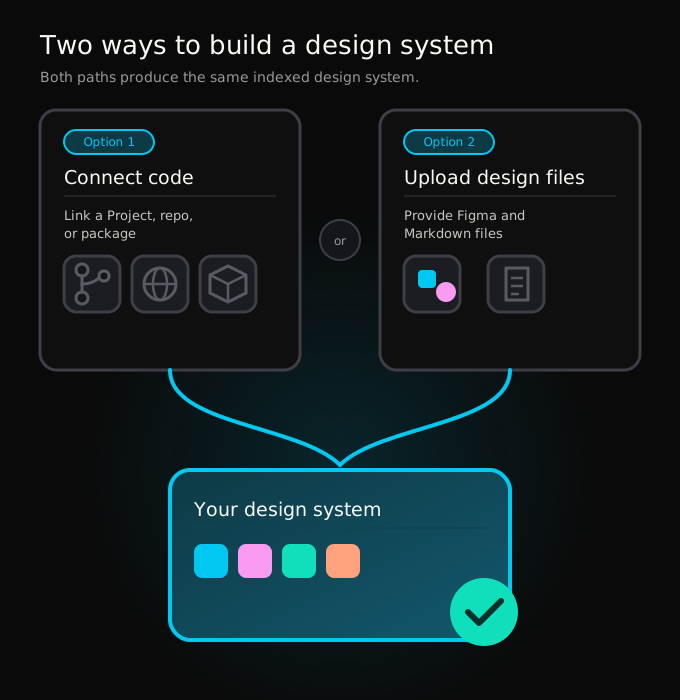
When creating a new design system within Builder's UI, you have two options:
- Create a design system by connecting Builder Projects, public repositories, and accessible NPM packages.
- Create a design system by uploading Figma designs and explanatory markdown files.
Connect Projects, public repositories, or packages
A new design system can be created from applications you have already connected to Builder, in addition to public repositories and packages. To learn how to connect your application's repository to Builder, visit Projects from repositories.
To create a new design system using Projects, public repositories, or packages:
- Go to the Design System Intelligence page on Builder.
- Click the Add Design System button.
- Select Yes for the option that allows you to add a repo or package.
- Select one or more of the options for sources. More detail on each of these options can be found later in this doc.
- Complete the required fields for your source or sources.
- Click the Next button.
- Provide a name for your design system.
- Click Create.
When the Create button is clicked, Builder creates your design system and brings you to a graphical representation of that system. Within it, you can view indexed components. Keep in mind this process may take a few minutes.
In the video below, a Project and public package is provided to Builder to create a new design system.
Connect a Project
Design systems can make use of your existing Builder Projects. When you choose the option to connect a Builder Project as one of your design system sources, do the following:
- Select your connected repository. This must be a Project that is connected to your Builder organization. For more details, visit Projects from repositories and the Projects setup overview.
- After selecting your repository, choose which directories and files you wish to index. Builder seeks components and documentation as part of indexing.
- Optionally provide additional instructions to Builder. These instructions can be use to provide context to the AI.
Multiple Projects can be connected as part of a single design system.
Connect a public repository
By providing publicly accessible repositories to Builder, Builder can index a repository in the same way it does a connected Project. When you choose the option to connect a public repository:
- Provide a URL for your public repository. Builder immediately attempts to access the repository and provide a file breakdown for it.
- Choose which directories and files you wish to index. Builder seeks components and documentation as part of indexing.
- Optionally provide additional instructions to Builder. These instructions can be use to provide context to the AI.
Multiple public repositories can be connected as part of a single design system.
Connect a package registry
Connect a public or private package to your design system by selecting the package registry option. When you do:
- Provide the name of your package.
- Optionally include a link to your registry. Use this option if you are not using a package from npm.
- If your package is private, provide your private token. This token is used only to resolve the package; it is stored securely and then never shown again.
- Click the Test Connection button to ensure Builder is able to access your package using the information you have provided. If it fails, review the data you have inputted.
- Optionally provide additional instructions to Builder. These instructions can be use to provide context to the AI.
Multiple packages can be connected as part of a single design system.
Connect design files
If you have access to Figma files and text files that describe your design, a design system can be created within Builder using the UI.
To create a new design system using Figma designs and text files:
- Go to the Design System Intelligence page on Builder.
- Click the Add Design System button.
- Select No for the option that allows you to connect Figma files and other text files.
- Upload your Figma design files and associated text files. For Figma files, you may be asked whether you wish to attach all pages and frames, or just select ones.
- Optionally add more instructions in the Instructions input box.
- Click the Next button.
- Provide a name for your design system.
- Click Create.
When the Create button is clicked, Builder creates your design system and brings you to a graphical representation of that system. Within it, you can view indexed components. Keep in mind this process may take a few minutes.
In the video below, a Figma file and markdown file are provided to Builder.


